Submit a Workflow
Preface
This guide will describe how to configure and submit a workflow that is then running in the namespace of a Diamond visit. The easiest way to run your application as a workflow is by using containers. We therefore recommmend that you build a container for your application and push it to a container registry. Check the Diamond developer portal for more details on Working with Containers.
Workflow
Individual Workflows can be configured as YAML manifests that include an apiVersion,
declare the kind as Workflow and are given a name in metadata:
apiVersion: argoproj.io/v1alpha1
kind: Workflow
metadata:
  name: name-of-the-workflow
ClusterWorkflowTemplates vs. Workflows
Users acquainted with the Workflows Dashboard may be familiar with the concept of workflow templates. These are reusable blueprints used to run the same workflow many times and are defined using the kind ClusterWorkflowTemplate, which means they are stored in the cluster and available to all workflows users. Here, we are using the kind Workflow. This is for running a one-off job and you will need access to the yaml file each time you wish to run it. Both Workflows and ClusterWorkflowTemplates can be submitted using the command line.
We can then define a list of tasks as spec.templates[] and declare an entrypoint.
A task could be specified by a container with a given image and command:
spec:
  entrypoint: hello-world-example
  templates:
    - name: hello-world-example
      container:
        image: docker.io/library/busybox:latest
        command:
          - echo
          - Hello world
You can find more detailed information in the Argo Workflows documentation.
Hello world
A Workflow executing a busybox instance which prints "Hello world":
apiVersion: argoproj.io/v1alpha1
kind: Workflow
metadata:
  name: hello-world-example
spec:
  entrypoint: hello-world-example
  templates:
  - name: hello-world-example
    container:
      image: docker.io/library/busybox:latest
      command:
      - echo
      - Hello world
Workflow with parameters
Instead of hard-coding the message into the workflow, we can define a parameter message and
modify the command to reference our parameter using {{ inputs.parameters.message }}:
spec:
  entrypoint: hello-world-example
  templates:
    - name: hello-world-example
      inputs:
        parameters:
          - name: message
      container:
        image: docker.io/library/busybox:latest
        command:
          - echo
          - { { inputs.parameters.message } }
We can then provide a message at runtime as a parameter when we submit the workflow. You can find more parametrized workflow examples in the Argo Workflows documentation.
Using the Argo dashboard to submit a workflow
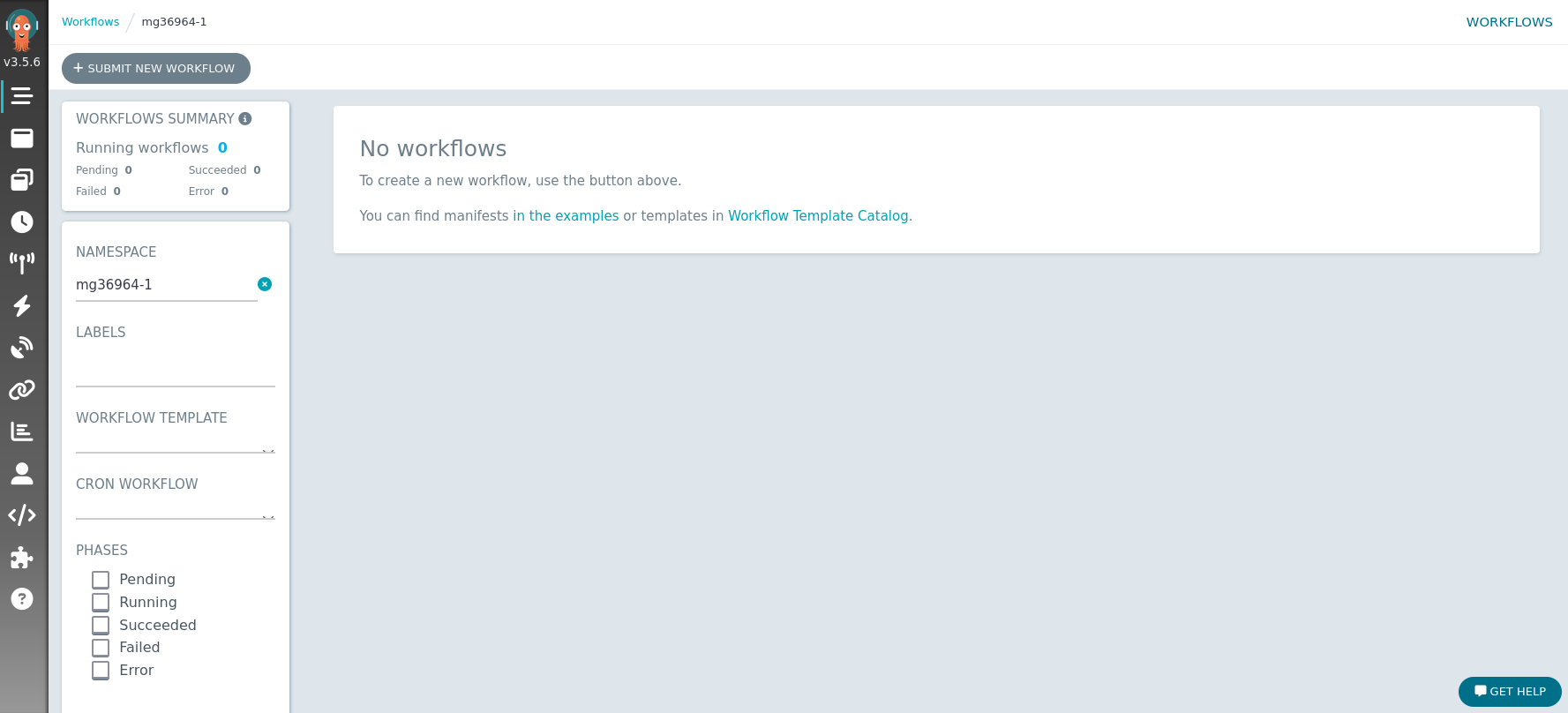
To access the Argo workflows dashboard, visit https://workflows.diamond.ac.uk and login with your Diamond credentials. It should open the dashboard in the workflows tab:
Note
A workflow can only by submitted within a namespace. For now, the available namespaces are all of Diamond's visits. In the future, we anticipate to also add other namespaces, e.g. user/fedid
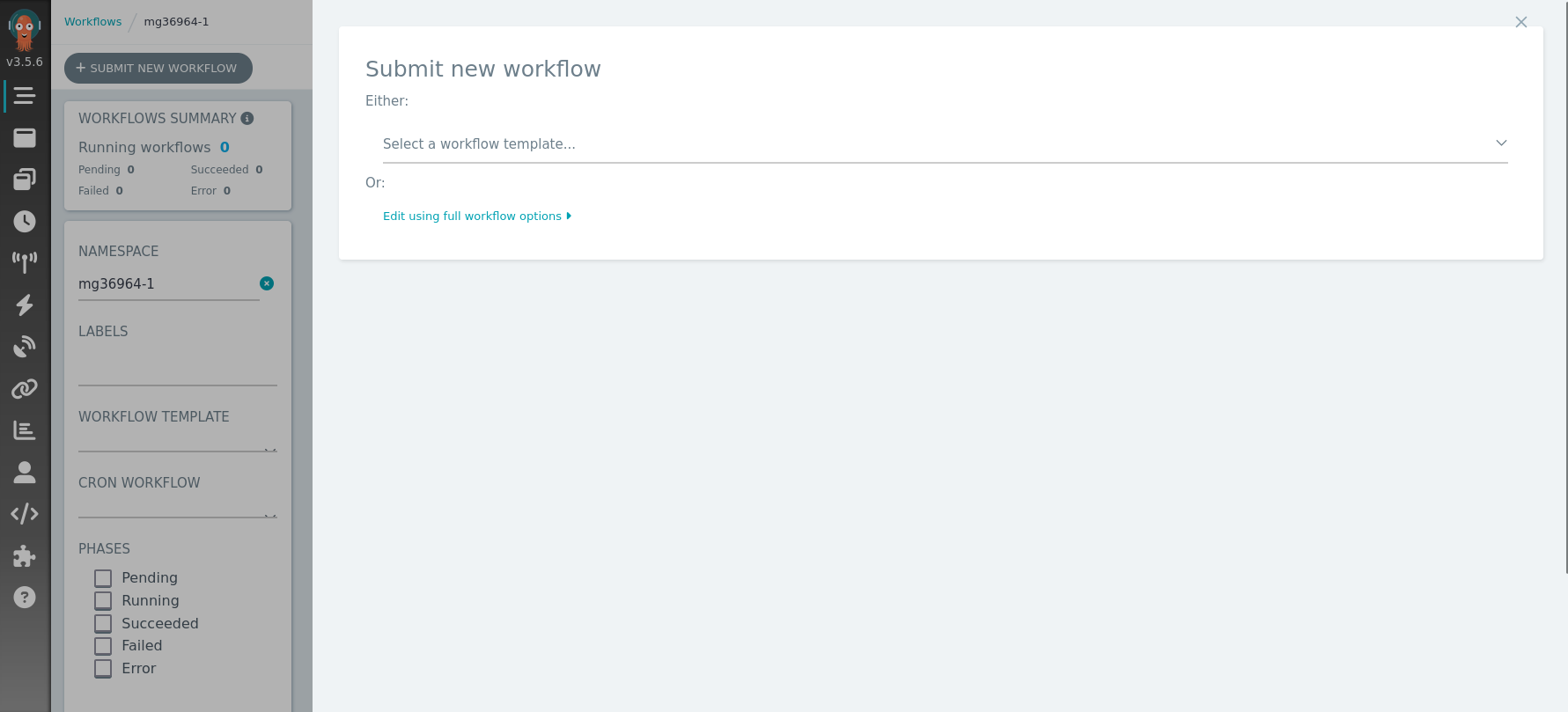
After specifying the namespace in which you would like your workflow to be executed, you can click on
+ SUBMIT NEW WORKFLOW which should give you a prompt
that allows you to either select an existing template or edit a default template:
On the edit page, you can modify an existing template or copy/paste the hello world example from above into
manifest section:
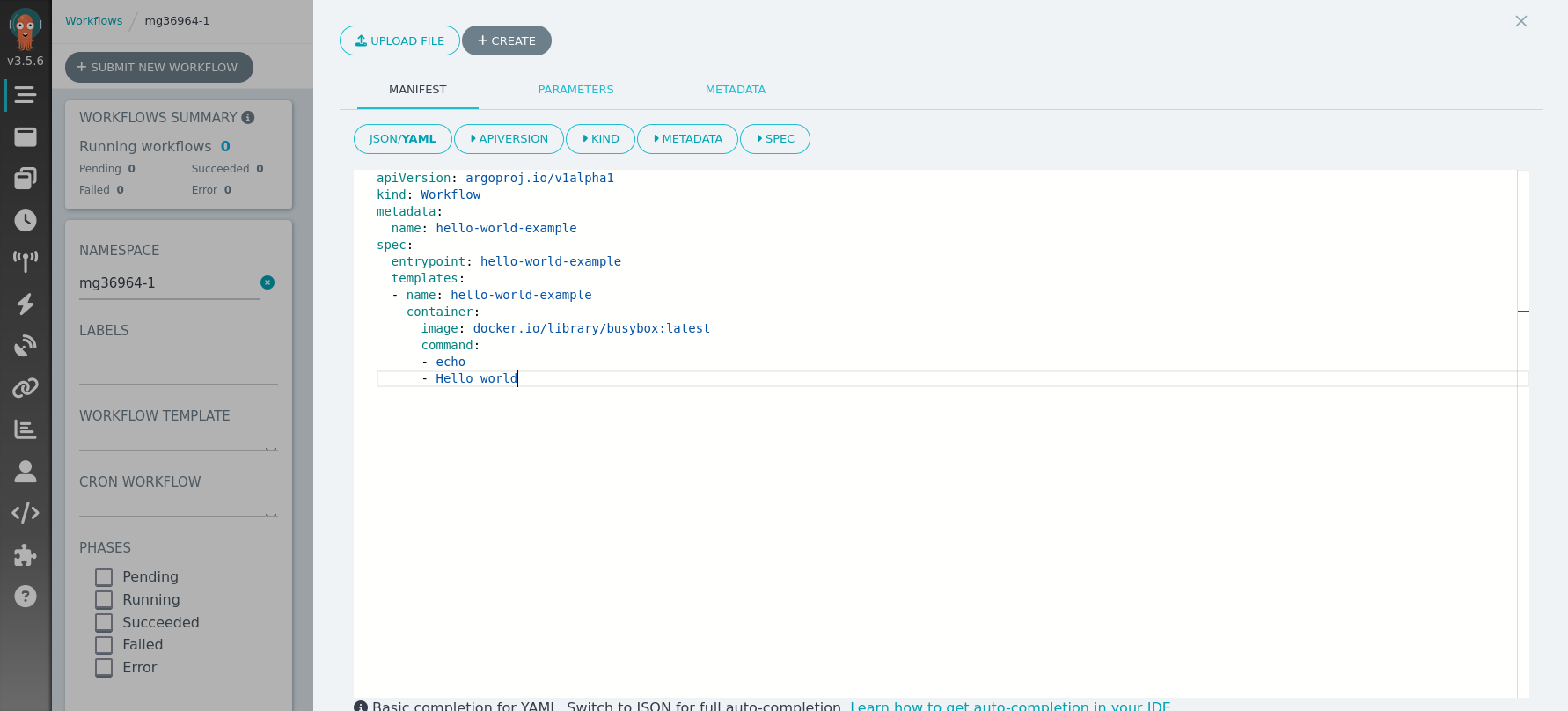
Once you are happy with the manifest and the parameters, you can submit the workflow by clicking on
+ CREATE which then brings you to a new page showing a pending workflow:
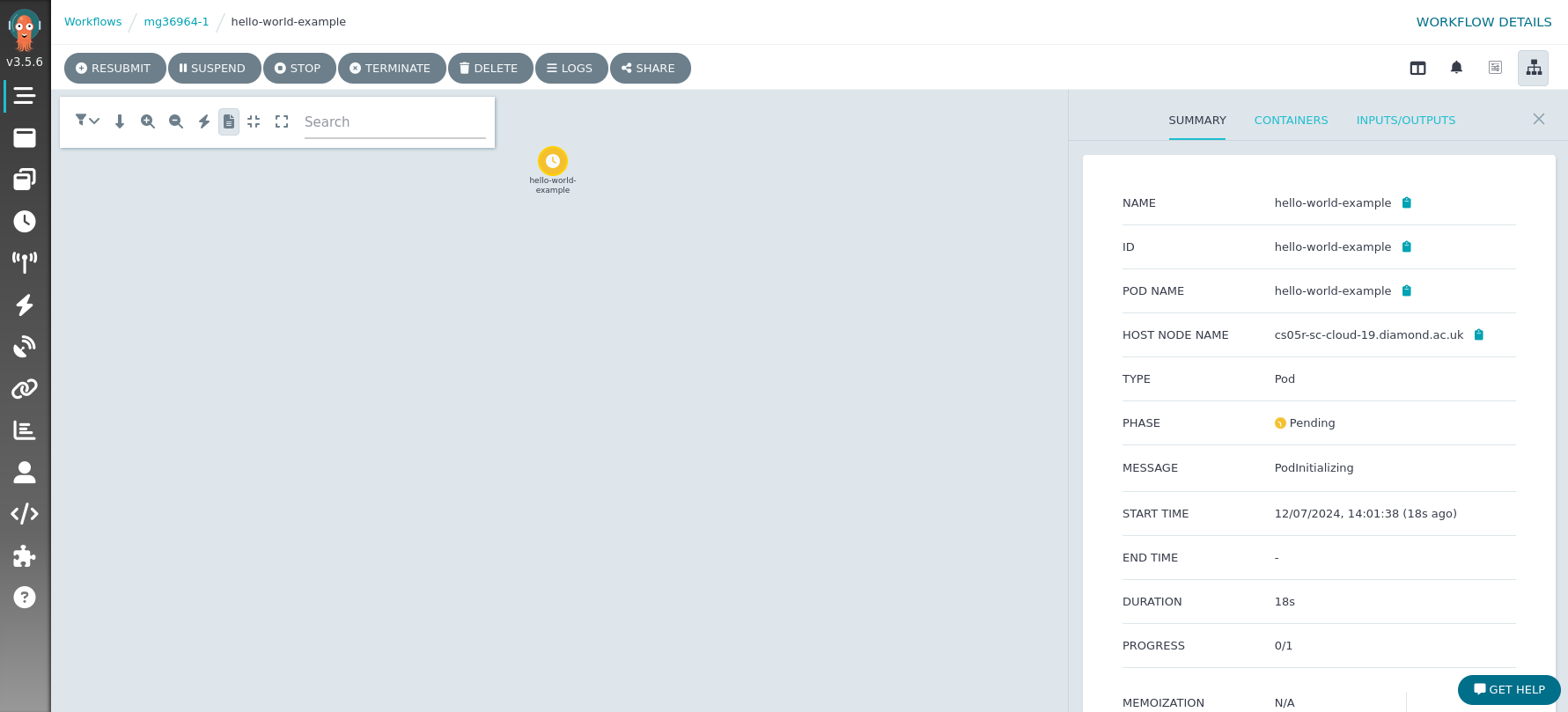
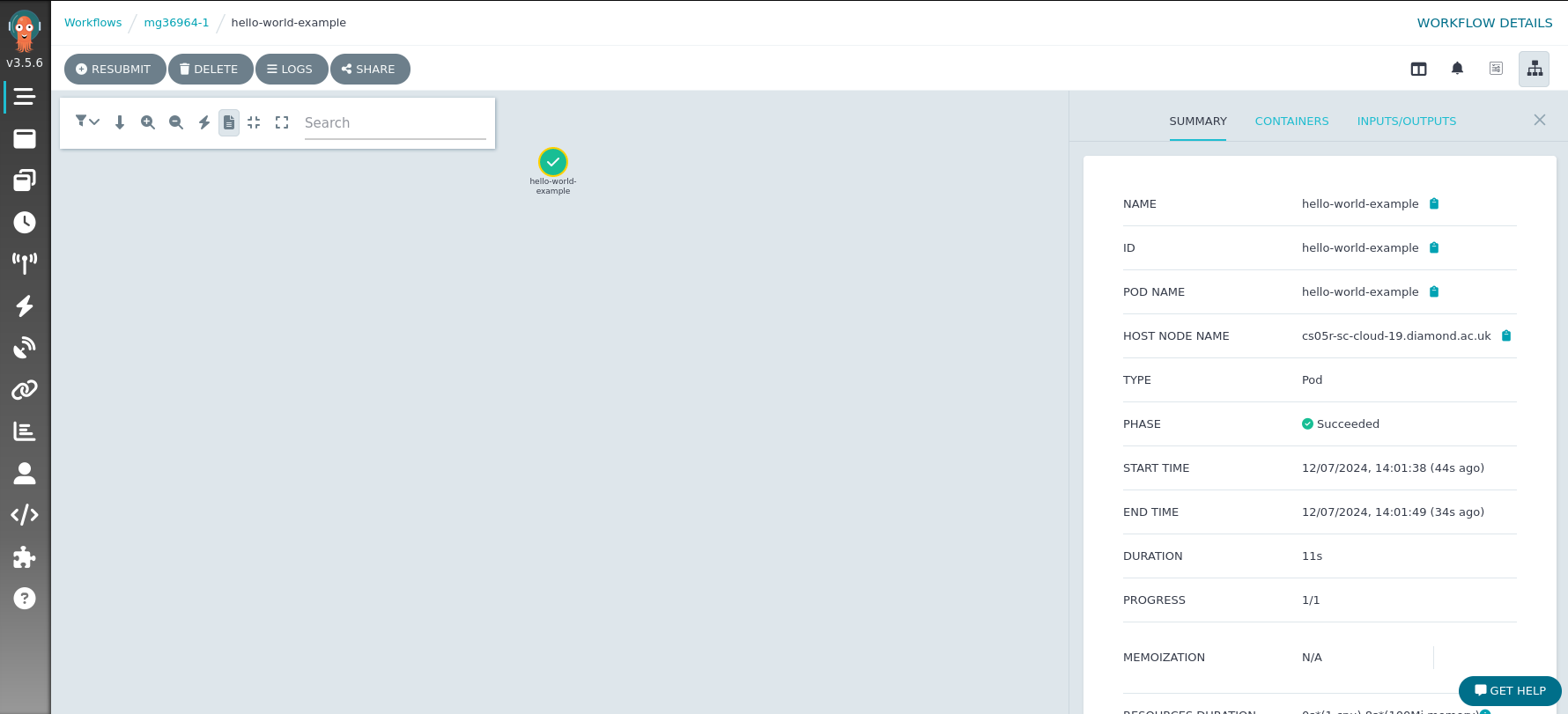
You can click on the icon in the centre to inspect your workflow and its status. Once the workflow has successfully finished, it should look like this:
Using the Workflows CLI to submit a workflow
Use the module system to load all the relevant tools. This will give you the latest supported version of the Workflows CLI.
module load workflows
The Workflows CLI tool contains several commands to assist in writing and submitting workflows:
workflows lint                     # Lint a workflow template file
workflows lint-config              # Lint a repository from a given config file
workflows submit -s <VISIT_ID>     # Submit a workflow from a Workflow or ClusterWorkflowTemplate yaml file
workflows create                   # Create a new repository to create workflow templates as conventional manifests and/or helm based templates
Each command accepts the --help flag for more guidance.
Using the Argo CLI to submit a workflow
See the official documentation for the Argo Workflows CLI. The most basic use cases are covered below
argo submit hello-world.yaml    # submit a workflow spec to the workflows engine
argo list                       # list current workflows
argo get hello-world-xxx        # get info about a specific workflow
argo logs hello-world-xxx       # print the logs from a workflow
argo delete hello-world-xxx     # delete workflow
When submitting workflows, please use your instrumentSession ID as the namespace, eg argo submit -n mg36964-1 <template>
Warning
Workflows submitted using the Argo CLI will not have random characters appended to their name. Due to the way workflows are archived, this can cause problems when the same name is used multiple times. If you must use the Argo CLI, it is recommended that you use replace the name field in the manifest with generateName, like so:
apiVersion: argoproj.io/v1alpha1
kind: Workflow
metadata:
  generateName: name-of-the-workflow-